Note: This is documentation for version 4.11 of Source. For a different version of Source, select the relevant space by using the Spaces menu in the toolbar above
Project Options
Configuration settings that are project-specific are accessed via Edit » Project Options. These settings are saved with your project, and if you share the project with another person, the settings will persist.
Audit Log Settings
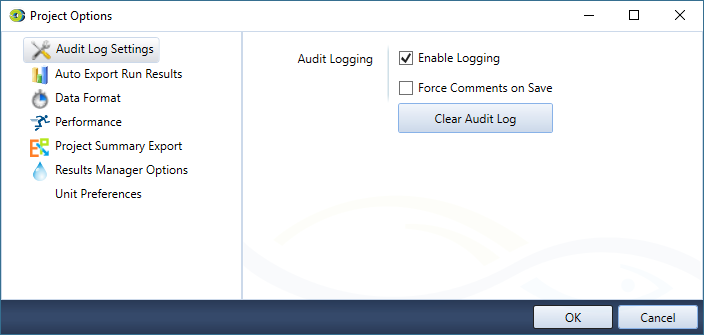
The audit log keeps track of the changes made to a project over time. This is particularly useful for projects that are worked on by multiple people, but can become a processing burden, especially in the case of large projects. Audit logging is on by default, but can be disabled by toggling off Enable Logging. Additional comments can be added to the project by enabling the Force Comments on Save option. Click Clear Audit Log to delete all existing entries in the audit log. This can be useful if you have finished one stage of modelling (eg. building your model) and now want to monitor the changes made to the project from this point forward. Before clearing the log you can export the existing entries by opening the Audit Log Viewer (select View » Audit Logs...), right click on a cell and choose Copy All and paste contents into a text file or Excel file.
Figure 1. Project Options, Audit Log Settings
Auto Export Run Results
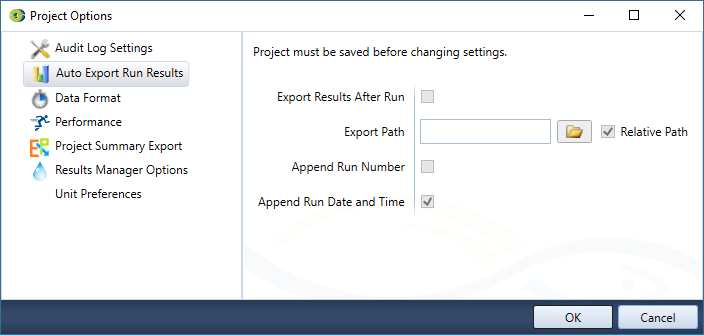
This features provides a method for automatically exporting the recorded run results to .res.csv files when the model run is complete. If the Export Results After Run option is selected the files will be either exported to the specified Export Path or if a path has not been specified a Folder named Results will be automatically generated in the same location as the saved .rsproj. By default the results file will be saved with a combination of the Project Name - Scenario Name - Run Date and Time.res.csv. The Run number can also be added to the name of the results file if the Append Run Number option is selected
Figure 2. Project Options, Auto Export Run Settings
Data Format
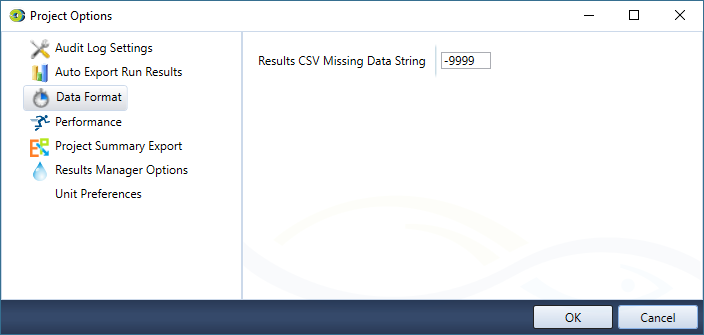
Various identifiers can be used for missing data in a time series. All missing time series data within a project must have the same identifier assigned to it. In the example below the identifier has been assigned as -9999.
Figure 3. Project Options, Data Format
Performance
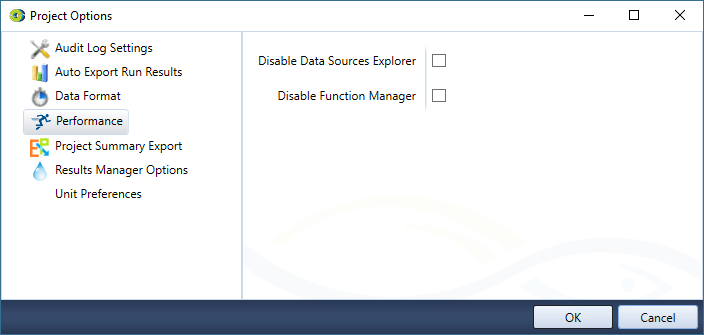
To improve model run time performance the option to disable the Data Sources Explorer, and Function Manager has been provided. Performance gains may be marginal if these options are activated, however in very large projects enabling these options will most likely enhance the performance of the model run.
Figure 4. Project Options, Performance
Project Summary Export
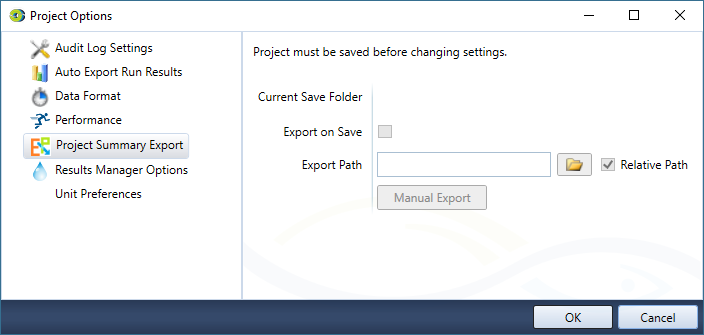
The Project Summary Export allows for the project summary to be saved to either the specified location or by default the to same location as the saved .rsproj file. The export on Save cannot be enable until the project has been saved.
Figure 5. Project Options, Project Summary Export
Result Manager Options
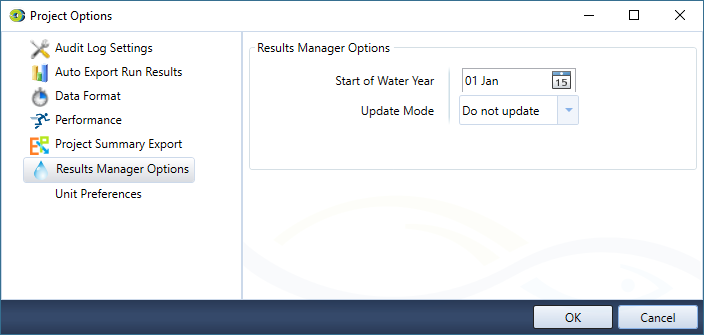
You can specify the default start of the water year, and choose how this change will affect existing statistics. There are three Update Mode options available:
- Do not update – only new statistics will use the new value. This is the default;
- Update all – update any existing statistics to the new water year; and
- Update unchanged – update any existing statistics that have not been changed from the previous default. Regardless of the default, you can change the start of water year for a single result or custom chart on the Statistics view for that result.
For example, the start of the water year is set to 1 Oct. You create a custom chart, it has the default water year start date of 1 Oct. You also create an annual aggregator transform and change the water year start date from 1 Oct to 1 Jan. Later, you change the default water year start date in Project Options to 1 Jul. Regardless of which update mode you choose, all new statistics will use 1 Jul. If you choose Do not update, the custom chart and aggregator will continue to use their previous values, 1 Oct and 1 Jan, respectively. If you choose Update all, the custom chart and the annual aggregator will both use the new default, 1 Jul. If you choose Update unchanged, the custom chart will use 1 Jul, but the aggregator will continue to use 1 Jan, because it has already been changed from the previous default of 1 Oct.
Figure 2. Project Options, Result Manager Options
Unit Preferences
Here you can configure the default display units used in Source. On the Category Defaults tab, model properties have been grouped logically into categories (Figure 3, Table 1), allowing you to set different unit preferences for each category. For example, you can choose different preferences for rainfall and depth, although they both use the same dimension of length. The available categories, their system defaults and their dimensions are listed in Table 1. On the Defaults tab, you can configure the defaults used for properties not associated with any category (Figure 4). The available dimensions, their system defaults, and the other available unit options are listed in Table 2.
Figure 3. Unit Preferences, Category defaults
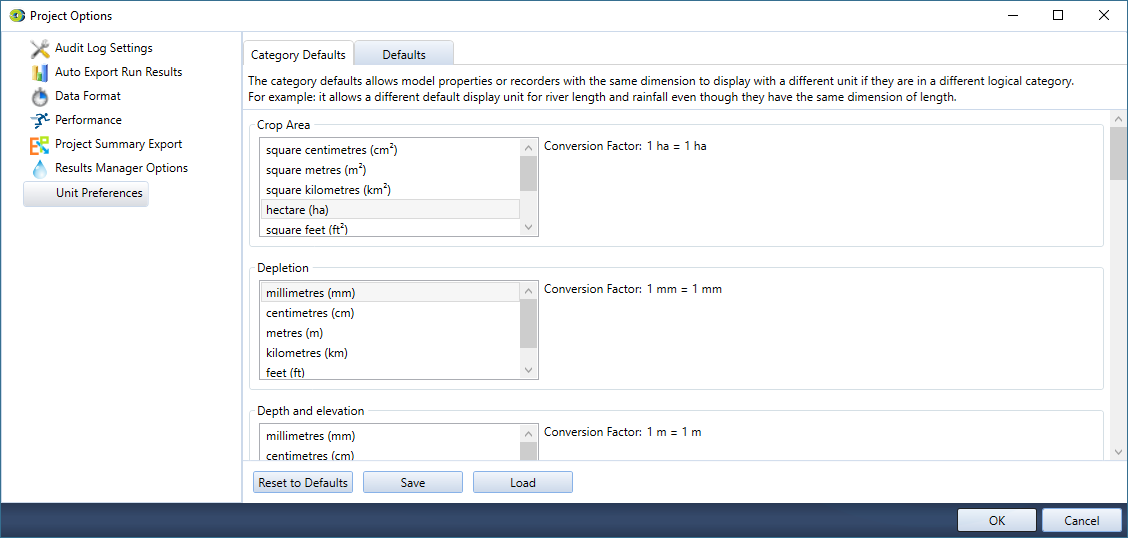
Figure 4. Unit Preferences, Defaults not in a category
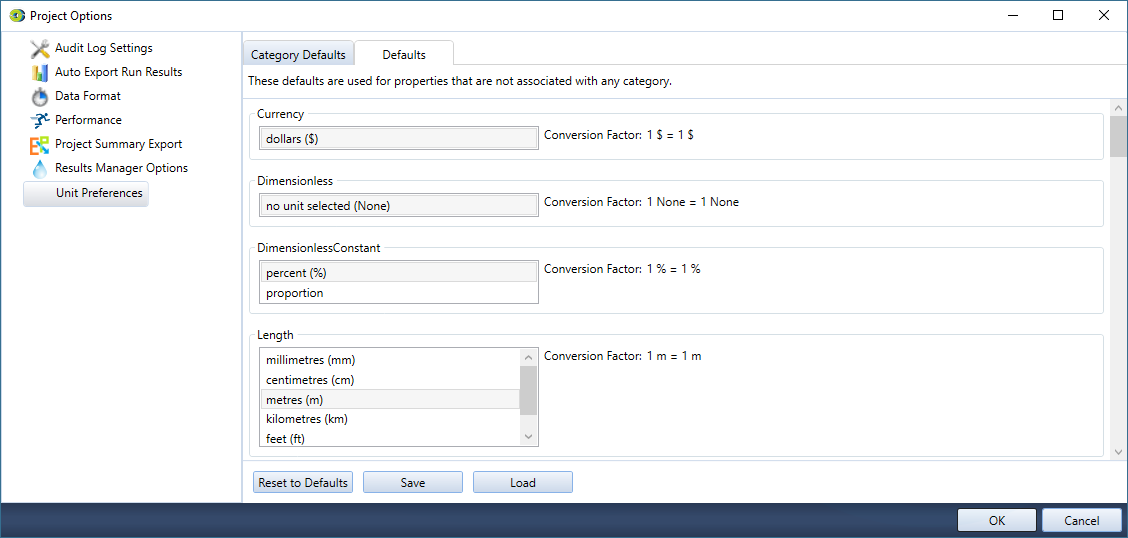
Table 1. Unit Preferences, Category defaults
Category | System default | Category dimensions |
|---|---|---|
| Crop area | hectare (ha) | Length2 |
| Depletion | millimetres (mm) | Length |
| Depth and elevation | metres (m) | Length |
| Extraction or demand rate | megalitres per day (ML/d) | Length3.Time−1 |
| Extraction or demand volume | megalitres (ML) | Length3 |
| Flow rate | megalitres per day (ML/d) | Length3.Time−1 |
| Flow volume | megalitres (ML) | Length3 |
| Moisture | millimetres (mm) | Length |
| Rainfall and evaporation depth | millimetres (mm) | Length |
| Rainfall and evaporation rate | millimetres per day (mm/d) | Length3.Time−1 |
| River length | kilometres (km) | Length |
| Storage/Wetland volume | megalitres (ML) | Length3 |
| Water surface area (storage/wetland or river reach area) | square kilometres (km2) | Length2 |
Table 2. Unit Preferences, Defaults not in a category
Property dimensions | System default | Other available options |
|---|---|---|
| Currency | dollars ($) | – |
| Dimensionless | no unit selected (None) | – |
| Dimensionless Constant | percent (%) | proportion |
| Length | metres (m) | centimetres (cm) kilometres (km) feet (ft) |
| Length−1 | kilometres per square kilometre (km/km2) | hectare per megalitre (ha/ML) |
| Length−1.Currency | dollars per metre ($/m) | dollars per kilometre ($/km) |
| Length−1.Mass | tonnes per kilometre (t/km) | – |
| Length.Time−1 | millimetres per day (mm/d) | metres per second (m/s) millimetres per year (mm/y) metres per year (m/y) metres per day (m/d) millimetres per hour (mm/h) |
| Length2 | hectare (ha) | square centimetres (cm2) square metres (m2) square kilometres (km2) square feet (ft2) acre (ac) million acres (Mac) |
| Length−2.Currency | dollars per square metre ($/m2) | dollars per square kilometre ($/km2) dollars per hectare ($/ha2) |
| Length−2.Mass | tonnes per hectare (t/ha) | tonnes per square kilometre (t/km2) |
| Length2.Time−1 | metres squared per day (m2/d) | metres squared per second (m2/s) hectares per day (ha/d) |
| Length3 | megalitres (ML) | cubic centimetres (cm3) cubic metres (m3) litres (L) gigalitres (GL) acre feet (ac-ft) million acre feet (MAF) cubic kilometres (km3) cubic feet (ft3) thousand cubic feet (kft3) million cubic metres (MCM) hectare metres (Ham) |
| Length−3.Currency | dollars per cubic metre ($/m3) | dollars per megalitre ($/ML) dollars per litre ($/L) |
| Length−3.Mass | milligrams per litre (mg/L) | grams per litre (g/L) micrograms per litre (μg/L) kilograms per cubic metre (kg/m3) tonnes per cubic metre (t/m3) |
| Length3.Time−1 | megalitres per day (ML/d) | megalitres per year (ML/y) megalitres per week (ML/wk) gigalitres per day (GL/d) litres per second (L/s) cubic metres per second (m3/s) kilolitres per day (kL/d) kilolitres per year (kL/y) cubic feet per second (ft3/s) thousand cubic feet per second (kft3/s) million cubic metres per day (MCM/d) |
| Mass | kilograms (kg) | micrograms (μg) milligrams (mg) grams (g) metric ton (t) megaTon (Mt) kilotonne (kt) |
| Mass−1.Currency | dollars per tonne ($/t) | dollars per kilogram ($/kg) |
| Mass.Time−1 | kilograms per day (kg/d) | tonnes per year (t/y) tonnes per day (t/d) kilograms per year (kg/y) kilograms per second (kg/s) kilotonnes per year (kt/y) kilotonnes per day (kt/d) |
| Time | day (d) | second (s) minute (min) 6 minute (sixMin) hour (h) week (wk) year (y) |
| Time−1.Currency | dollars per year ($/y) | – |
| Time −1.Mass.Length−1 | tonnes per kilometre per year (t/km/y) | – |
| Time −1.Mass.Length−2 | tonnes per square kilometre per year (t/km2/y) | tonnes per hectare per year (t/ha/y) |
| Time −3.Mass.Length2 | kilowatt (kW) | megawatt (MW) gigawatt (GW) watts (W) |
| Time −4.Mass.Length2 | kilowatt hours (kWh) | megawatt hours (MWh) gigawatt hours (GWh) |